Looks Like Your Cart Is Empty!
Log In To Reorder
Swipe to see more product images
 Loading

Sorry for the inconvenience, please select a made to order adhesive option in the card below.
| Adhesive Type | Temperature Range | Why Choose This Adhesive? |
|---|---|---|
| General Purpose | 32°F to 120°F | Most Popular & Least Expensive |
| Freezer Grade | -40°F to 32°F | Ideal for Frozen Applications |
| Removable | 32°F to 120°F | Leaves Minimal Residue Behind |
| Acrylic | 10°F to 120°F | Flexible Solution, Great for Waxy Boxes |
This type of thermal label only requires the label to print. If you only load the blank labels into your printer to print, direct thermal is what you need to choose.
This type of thermal label requires a wax ribbon to print onto a label. If you use a ribbon currently to print, you need thermal transfer labels.
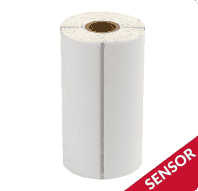
Do you currently have a black line on the liner between each label? If you do, your mobile printer will require labels with a timing mark. A timing mark is a black line on the release liner in between each label. Also called a sensor mark, printers use timing marks to distinguish one label from the next.
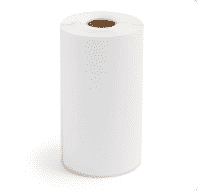
If you don't currently have a black line on the liner between each label, your mobile printer will require blank labels and your printer will rely on gap sensors. Gap sensors are a section of blank space between each label. This allows the printer to distinguish where one label ends and the next begins.
Our most popular and least expensive option. Works for almost every barcoding application. Service temperature range of 32 - 125 degrees.
Perfect for applications where you may need to remove the labels after application. Good for short term removable applications.
Ideal for companies that are applying or storing their labels in refrigerated or frozen applications. These labels will stick in temperatures as low as negative 40 degrees.
A popular choice for almost all labeling projects. Won’t produce a glare or leave smudges from fingerprints. A great low cost option if you are looking for a standard label with excellent print quality.
The perfect choice for a more durable label. Synthetic material that is tear-resistant, water-resistant, and capable of withstanding harsh environments, oils, and chemicals. Ideal for long-term applications.
A unique, versatile way to bring attention to labels. Useful for helping to recognize hazardous materials, drawing cautionary attention, or identification, tracking, and inventory purposes.
A black backing designed to mute out any visible images, text, or colors. Perfect for covering up any obsolete information or previously used labels or barcodes.
A finish that adds an extra layer of protection to help prevent scuffing or markings that can occur during transit. An ideal pick for a more durable paper material.
Not sure which label material is right for you? For short term labeling projects that provide excellent print quality and easy customization to any application, paper is what you need. When you need a more durable label resistant to tearing, smudging, and exposure to the elements like heat and moisture, poly is the perfect fit.
Not sure which label finish you need? If your label project benefits from a smooth, soft, and muted look to enhance your unique designs and give an overall authentic feel, then matte is an ideal choice. If your labels need to "pop" with a reflective shine and polished overlay that accentuates colors to look more vibrant, gloss is the way to go.
Matte black ink offers darker, sharper black text and images when printed on specific media: matte, textured, and plain. Matte is not recommended for either semi and high-gloss finishes. This version meets BS5609 certification.
Gloss FinishGloss black ink is optimized for printing on a wider variety of substrates when compared to black matte ink. This includes finishes such as glossy, matte, plain, texture, and more. This version meets BS5609 certification.

When deciding between matte vs gloss, consider the type of media you'll be printing on.
Ideally suited for the manual application of on-demand printing. Peel-and-present capability prints individual labels with the liner already removed, allowing for immediate application. An integrated label-taking sensor holds off printing additional labels until the previous label is removed.
Auto CutterAn excellent choice for creating variable-length labels. Auto-cutter capability covers the full spectrum of label sizes with a 4" or 8" built-in cutter. Because labels can be cut at any size, this version helps reduce costs and overall inventory when compared to buying and using pre-printed labels.
Both the peel & present and auto cutter options will allow for the use of a label rewinder.
Choosing which ribbon to use depends on what material your label is made from.
Check out the chart below to find what ribbon is right for you.
| Material | Ribbon Type |
|---|---|
| Paper | Wax |
| Polypropylene | Wax Resin |
| Vinyl, Polyester | Resin |
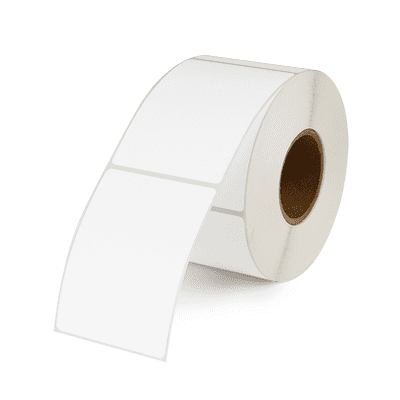
If you're looking for ample space for printing variable information, this is the option for you. Our blank style offers versatility for what to print and where to place it on your scale label. Customize a variety of product names, packed on or sell by dates, weights, prices, barcodes, and more for your business needs.
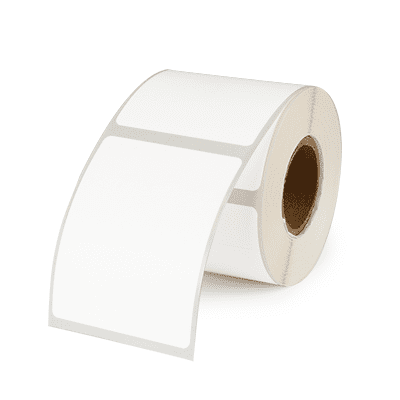
If you're looking for ample space for printing variable information with the benefit of adding promotional efforts, this is the option for you. Our blank style lets you customize text and placement for product names, dates, weights, prices, barcodes, and more to meet your business needs. A perforated tab on the label facesheet can be utilized for promotions, coupons, callouts, and more.
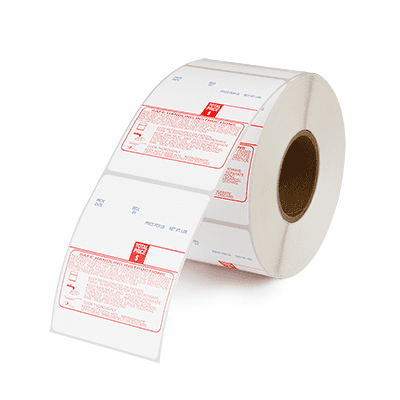
If you're looking to highlight important information on your white label design with a pop of color and an added message, this option is for you. Vibrant blue text holds space for printing variable information while the addition of red "Safe Handling" instructions promotes food safety practices and handling tips.
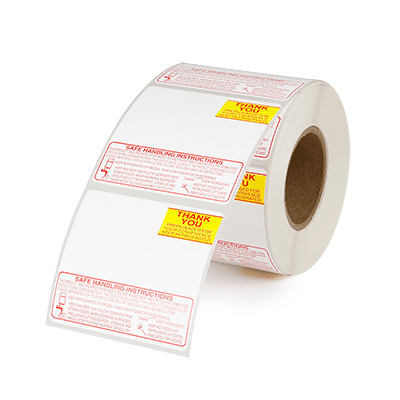
If you're looking to highlight important information on your white label design with a pop of color and an added message, this option is for you. Our vibrant red and yellow or black "Thank You" text compliments the addition of "Safe Handling" instructions to promote food safety practices and handling tips.
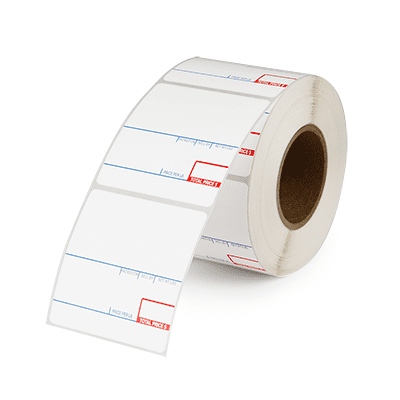
If you're looking to combine a UPC barcode, variable item information, and a list of ingredients in one label, this is the option for you. A crisp white design allows barcodes to easily scan while red and blue text draws attention to dates, prices, and more. Include a list of ingredients to alert customers to crucial product information, including allergens.
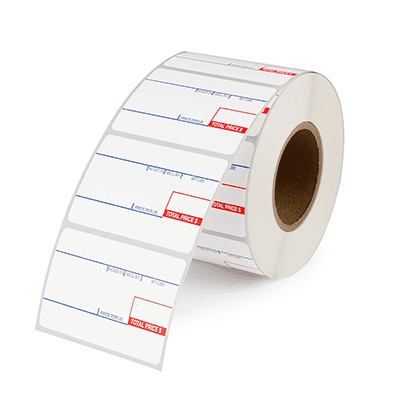
Our preprinted layout has designated areas for important product information like packs, weights, and prices, and sell by dates, with additional space for a UPC barcode. Using a preprinted label allows colors to draw attention and helps highlight important text.
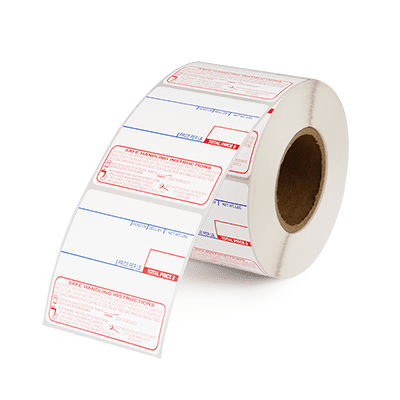
If you're looking to combine a UPC barcode, variable item information, and important "Safe Handling" instructions, this option is for you. Vibrant blue text holds space for printing variable information while the addition of red "Safe Handling" instructions promotes food safety practices and handling tips.
If you choose this option, one of our customer service representatives will reach out to get your logo artwork after you have successfully checked out.
We will then send you a proof for your approval. Once approved, our team will get to work. Please allow for a 4 week lead time for these custom orders.
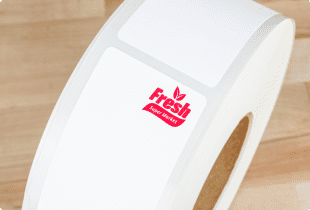
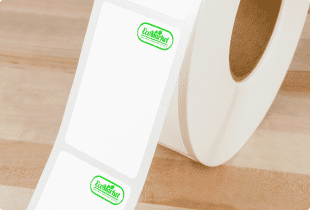
Your logo can only be in 1 color. Additionally, there will be a case minimum for us to add your logo to the labels.
Loading
| Number Of Cases | Carrier | Total Freight | Freight Per Case |
|---|
Please finish configuring your product before estimating shipping.
Orders of this quantity will generally ship small parcel, via UPS.
Alternatively, if you have a FedEx account, you are welcome to use your account and ship collect with that carrier. Either way, we always recommend our customers increase their order quantity high enough to qualify for LTL shipping as that is the cheapest option on a per case basis.
Orders of this quantity will generally ship LTL.
The only requirement is that your order will need a dock for the pallet to be unloaded onto. If you do not have a dock, please let us know at checkout so we can arrange special delivery. We always recommend customers choose LTL as it is the cheapest and safest way for your labels to be shipped.
Loading
Thank you for your submission. Our team will get to work on sending your samples right away.
If you have any questions in the meantime, please don't hesitate to call (1-800-875-7000) or email us (support@smithcorona.com).
Please finish configuring your product before requesting a sample.
Enter your email and number of boxes needed and we will let you know when your selection is available.
Thank you for your interest. We'll let you know when your item is available.
If you have any questions in the meantime, please don't hesitate to call (1-800-875-7000) or email us (support@smithcorona.com).
Thank you for your request. A member of our team will be in touch with your special pricing shortly.
If you have any questions in the meantime, please don't hesitate to call (1-800-875-7000) or email us (support@smithcorona.com).
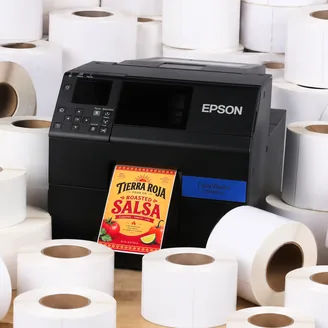
Your $500 label coupon buys more at Smith Corona. Purchase your Epson ColorWorks C6000 from us and get FREE compatible inkjet labels at our factory direct prices. Coupon provided after printer purchase. Questions? Call 800-875-7000.
Shop Compatible LabelsThe right printer starts with the right information. Use the links below to explore the Epson ColorWorks C6000 and see how it fits your business.
See how the Epson C6000A fits your label line, with a closer look at print quality, supported command languages, connectivity, and remote management.
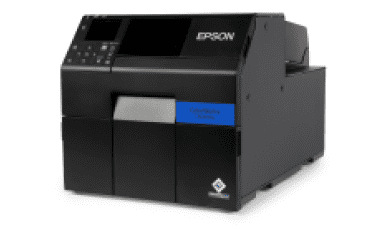
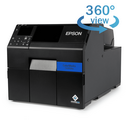
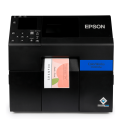
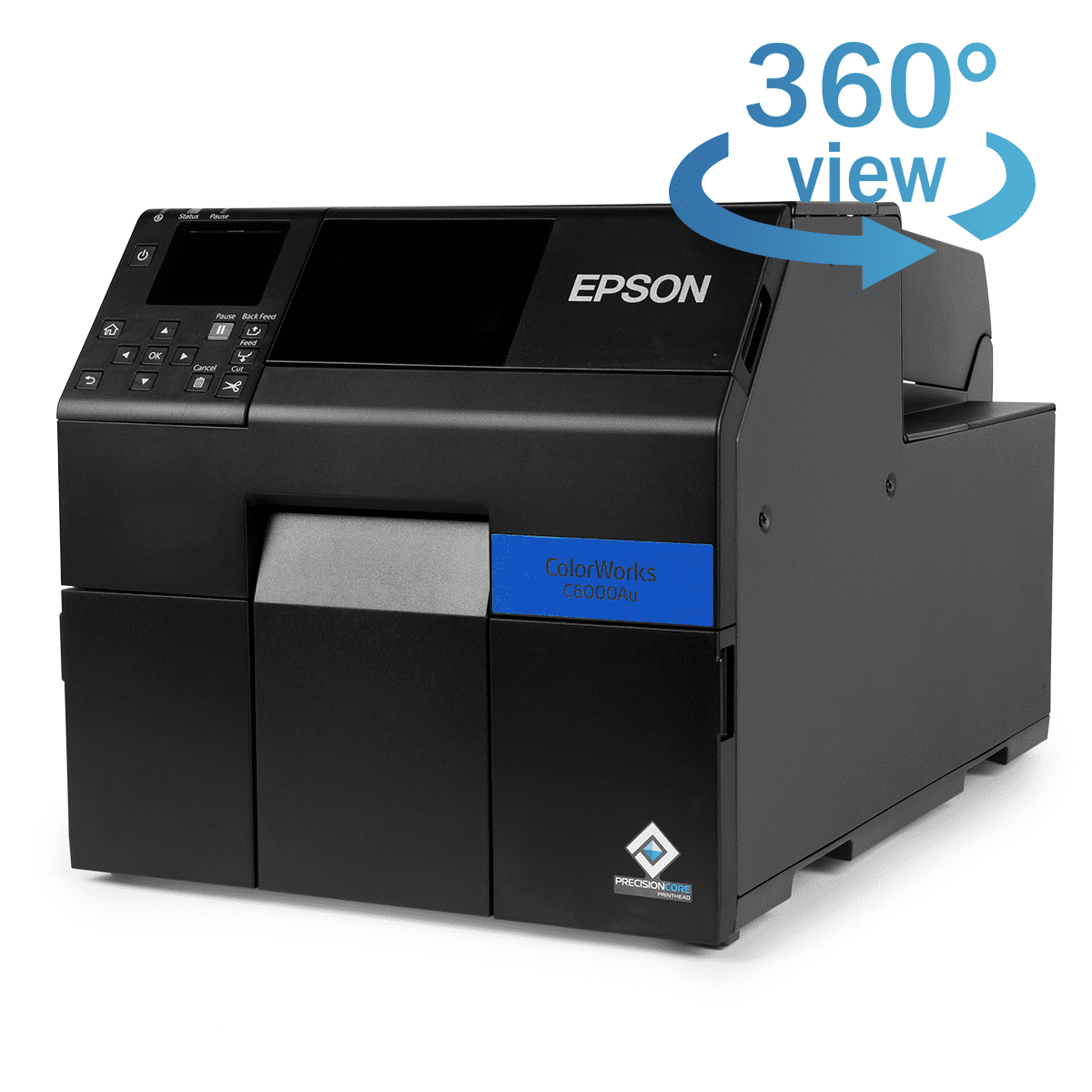
The Epson ColorWorks C6000A is a color inkjet label printer engineered to produce vibrant, detailed labels on demand. This model has a built-in auto cutter that lets you print and cut labels in varying lengths to suit different products and applications.
Behind that print quality is Epson PrecisionCore technology, which produces sharp text, clear barcodes, and detailed images. The permanent printhead is designed to last the life of the printer, reducing the need for routine printhead replacements.
Available in gloss black and matte black ink versions, the C6000A offers options for different label materials. Gloss black ink works with a wider range of media, while matte black produces deeper blacks on matte and plain paper labels.
Through PrecisionCore technology, Epson ColorWorks printers are able to deliver top of the line print quality for text, images, barcodes, and more.
Designed for speed and precise ink placement, the C6000’s printhead works with a resolution of up to 1200 × 1200 dpi to produce vibrant colors, smooth gradations, and sharp image details on your labels.
ZPL II support helps Epson ColorWorks printers work with existing label-printing software, reducing the need for reprogramming.
ESC/Label gives users complete control to customize their inkjet printer. Its command extensions support color product images, logos, and color-coded fields to highlight key information and reinforce brand identity.
Users can also configure different label types and sizes while arranging text, barcodes, logos, or graphics in any desired position on the label.
Epson ColorWorks C6000 remote management tools help IT and support teams monitor and manage networked printers across multiple locations. Teams can configure printer settings and deploy changes to groups of printers without visiting each device.
These tools support email alerts for issues that need attention, remote firmware updates, and network configuration. Browser-based access lets teams view and adjust supported settings from a computer or an Apple or Android smartphone, making routine printer management more convenient.
All Epson ColorWorks C6000 printers are equipped with a general purpose I/O port, giving automation developers full control to seamlessly integrate their printer into almost any workflow.
Users can synchronize the control and timing of their printer with external devices, like automatic label applicators and label unwinders and rewinders, while receiving necessary information on each printer's supply levels, status, faults, and readiness.
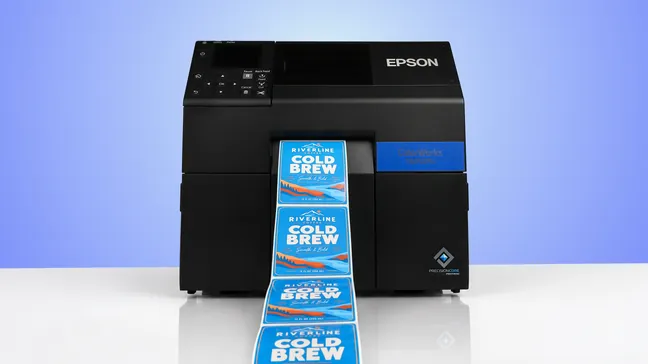
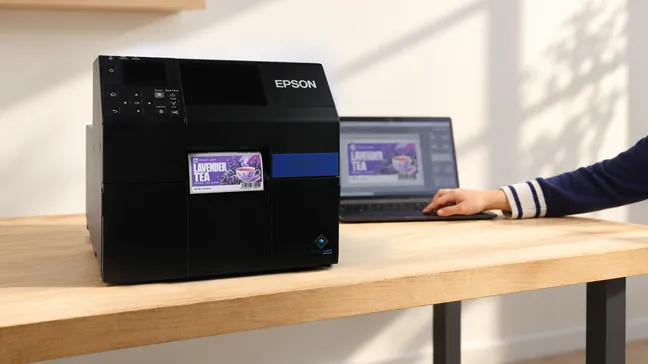
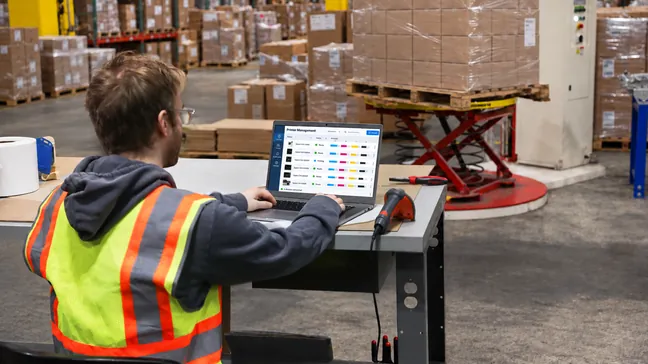
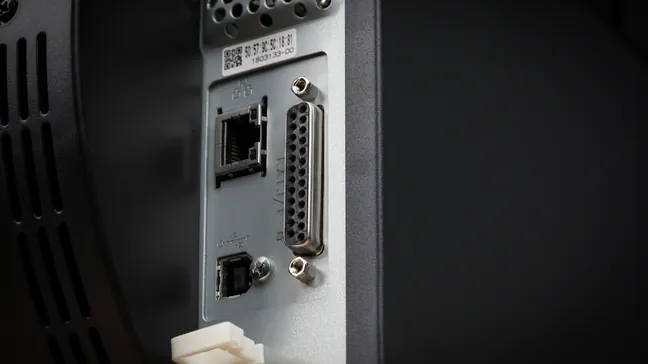
Get to know the Epson ColorWorks C6000A before your first print. Explore its design and see how it all works.
Select a marker to see the features in action
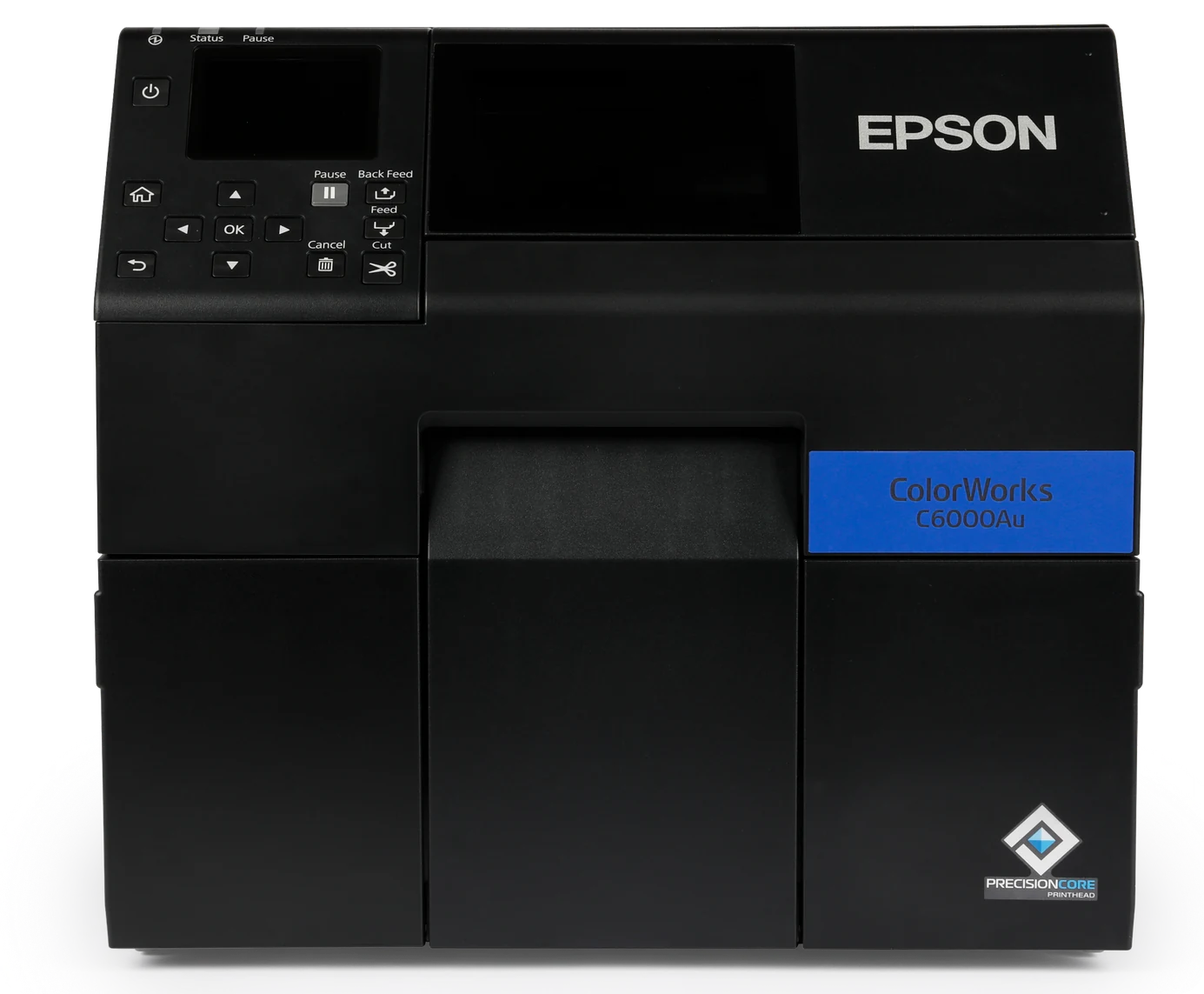
| Printer Dimensions | 13.4" x 22.2" x 12.8" |
|---|---|
| Printer Weight | 50.7 lbs |
| Printer Shipping Weight | 75.0 lbs |
| Remote Management | Yes |
| Connectivity | Ethernet 1000-T/100-TX/10-T, USB 2.0 |
|---|---|
| Printer Language | ESC/Label, ZPL II emulation |
| Operating Systems | Windows 11, 10 (32-bit/ 64-bit), 8.1 (32-bit/ 64-bit), 8 (32-bit/ 64-bit), 7 SP1 (32-bit/ 64-bit), Vista SP2 (32-bit/ 64-bit), Windows Server 2022, 2019, 2016, 2012 R2, 2012, 2008 R2 SP1, 2008 SP2 (32-bit/ 64-bit), Mac OS 10.6.8 or later, macOS 11 or later. Operation confirmed: Linux CentOS 7 (x86_64), Linux Ubuntu 18.04 (x86_64) |
| Factory Warranty | 1 Year |
| Printhead | Serial Inkjet PrecisionCore® TFP® |
|---|---|
| Ink Type | UltraChrome® DL pigment ink |
| Ink Colors | CMYK in individual pigment ink |
| Feed Option | Auto Cutter |
| Max Print Speed | Up to 5.0" per second (Max Speed Mode, 3.5" width) |
| Max Resolution | 1200 x 1200 dpi |
| Media Sensor | Gap, Black Mark, Continuous |
| Media Types | Gloss Paper, Matte Paper, Gloss Polypropylene, Matte Polypropylene |
|---|---|
| Media Thickness | 0.005" – 0.009" (0.129 mm – 0.236 mm) |
| Max Media Width (Including Liner) | 4.4" |
| Max Print Width | 4.25" |
| Max Print Length | 24" |
| Max Roll Outer Diameter | 8.0" |
| Inner Core Diameter | 3.0" |
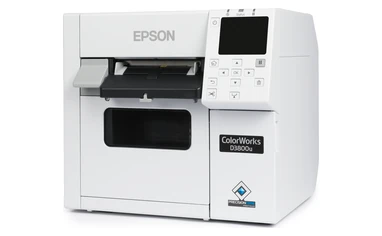
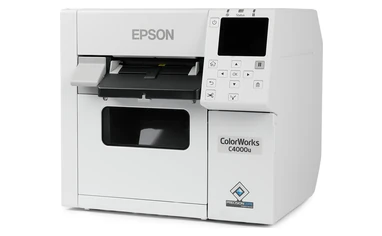
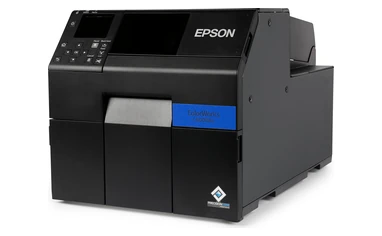
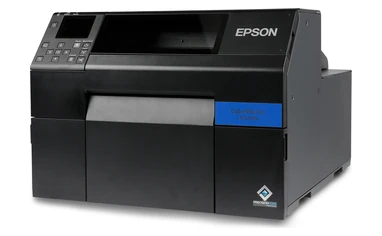
Find the right Epson ColorWorks printer for your business. Compare key specifications, features, and pricing in the chart below.
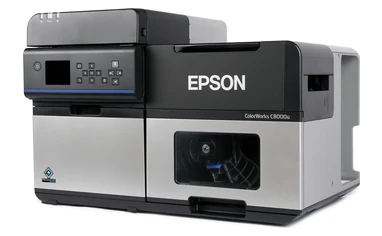
| Printer Models: | D3800 | C4000 | C6000 | C6500 | C8000 |
|---|---|---|---|---|---|
| Model Pictures |
|
|
|
|
|
| Ink Type | Epson Genuine Dye Ink | UltraChrome® DL Pigment Ink | UltraChrome® DL Pigment Ink | UltraChrome® DL Pigment Ink | UltraChrome® DL Pigment Ink |
| Printhead | Serial Inkjet PrecisionCore® TFP® | Serial Inkjet PrecisionCore® TFP® | Serial Inkjet PrecisionCore® TFP® | Serial Inkjet PrecisionCore® TFP® | PrecisionCore® Line Head |
| Print Resolution | 600 x 1200 DPI | 1200 x 1200 DPI | 1200 x 1200 DPI | 1200 x 1200 DPI | 600 x 1200 DPI |
| Print Speed | 3.94" Per Second | 3.94" Per Second | 5.0" Per Second | 5.0" Per Second | 11.8" Per Second |
| Feed Options | Auto Cutter | Auto Cutter | Auto Cutter Or Peeler | Auto Cutter Or Peeler | Auto Cutter |
| Operating Systems | |||||
| Connectivity | Ethernet 1000Base-T/100Base-TX/10Base-T, USB 2.0, Wi-Fi Optional | Ethernet 1000Base-T/100Base-TX/10Base-T, USB 2.0, Wi-Fi Optional | Ethernet 1000-T/100-TX/10-T, USB 2.0 | Ethernet 1000-T/100-TX/10-T, USB 2.0 | Ethernet 1000Base-T/100Base-TX/10Base-T, USB 2.0, USB 3.0, Wi-Fi Optional |
| Resources | — | Our Printer Review | Our Printer Review | Our Printer Review | Our Printer Review |
| Pricing | Starting at $1,499 | Starting at $2,499 | Starting at $3,059 | Starting at $3,965 | Starting at $9,630 |
| Ink Set | One Dye Ink Set (No Matte/Gloss Choice) |
Available In Gloss And Matte | Available In Gloss And Matte | Available In Gloss And Matte | Available In Gloss And Matte |
| Max. Outer Diameter | 4.0" | 4.0" | 8.0" | 6.0" | 8.0" |
| Max. Print Width | 4.25" | 4.25" | 4.25" | 8.34" | 4.25" |
| Label Width (Including Liner) | Roll: 1.0" – 4.41" Fanfold: 2.0" – 4.41" |
Roll: 1.0" – 4.41" Fanfold: 2.0" – 4.41" |
Auto Cutter: 1.0" – 4.4" Peeler: 1.0" – 4.4" |
Auto Cutter: 1.0" – 8.5" Peeler: 1.0" – 8.5" |
Internal Roll: 1.0" – 4.40" External Roll/Fanfold: 1.97" – 4.40" |
| Buy Now | Epson D3800 | Epson C4000 | Epson C6000 | Epson C6500 | Epson C8000 |
| Media | Gloss Black Ink | Matte Black Ink |
|---|---|---|
| Matte Paper | Good Image | Richer Image ― Darker Black |
| Matte Polypropylene | Good Image | Richer Image ― Darker Black |
| Gloss Paper | Excellent Image | Not Recommended |
| Gloss Polypropylene | Excellent Image | Not Recommended |
The Epson ColorWorks CW-C6000A has an auto-cutter, and the Epson ColorWorks CW-C6000P has a peeler. The C6000A’s cutter can cut continuous labels into different lengths, and it can cut after every label or at the end of each print job. The C6000P’s peeler separates each label from its backing and holds it until you take it, then prints the next one. The C6000A takes media 1.0" to 4.4" wide, and the C6000P takes media 2.0" to 4.4" wide.
Yes. The Epson ColorWorks CW-C6000 supports external unwinders and rewinders, and you can use them separately or together. An unwinder feeds labels from a roll larger than the printer’s 8" OD internal limit, so you can print longer runs with fewer roll changes. A rewinder winds your printed labels back onto a roll, ready for an automatic label applicator or for storing until you need them. Used together, they make a roll-to-roll system: labels feed from one large roll, print, and wind onto a new roll.
Choose the Epson ColorWorks CW-C6000 Gloss if you print on semi-gloss, high-gloss, or a mix of finishes. Choose the CW-C6000 Matte if you print on plain, matte, textured, or matte synthetic stock and want darker blacks. Epson doesn’t recommend the Matte version on semi-gloss, high-gloss, or high-gloss synthetic stock. Both versions use the same cyan, magenta, and yellow cartridges and are BS 5609 certified with the right media.
Yes. The Epson ColorWorks CW-C6000 supports Zebra ZPL II natively, so your existing ZPL label formats can print without reprogramming. You can add color to fields, logos, and warnings using ESC/Label color extensions. It also works with SAP and has a port for connecting automatic label applicators. Test complex ZPL formats on the C6000 before rolling it out across your fleet.
Choose the Epson ColorWorks CW-C6000 if your labels are up to 4.25" wide. Choose the Epson ColorWorks CW-C6500 if you need wider labels, up to 8.34" wide.
The C6000 prints up to 4.25" wide on media up to 4.4" wide (including liner), and the C6500 prints up to 8.34" wide on media up to 8.5" wide (including liner). The C6000 holds larger rolls, up to 8" OD, while the C6500 holds rolls up to 6" OD. Both use 3" cores. Otherwise, the two printers are the same: they share ink cartridges, the maintenance box, and 1200 x 1200 dpi resolution, and both come in auto-cutter (A) and peeler (P) versions.
The Epson ColorWorks CW-C6000 prints up to 4.25" wide. The C6000A takes media 1.0" to 4.4" wide (including liner), and the C6000P takes media 2.0" to 4.4" wide (including liner). Labels can be 0.31" to 24" long, but the minimum length is 0.59" when cutting and 0.50" when peeling. Internal rolls can be up to 8" in outside diameter on a 3" core. Media thickness can range from 0.005" to 0.009".
No. The Epson ColorWorks CW-C6000 works with labels from any manufacturer as long as they’re inkjet-receptive and fit the printer’s width, core, and outside diameter limits. Smith Corona makes compatible 3" core inkjet labels in gloss paper, matte paper, and gloss polypropylene. Ask us whether we have rolls in your size. The only supply that must be Epson-brand is the ink.
The Epson ColorWorks CW-C6000 holds rolls up to 8" in outside diameter on a 3" core. That’s larger than the CW-C6500’s 6" limit, so you’ll change rolls less often. For even larger rolls, you can use an external unwinder. Smith Corona makes 3" core inkjet rolls with 6" and 8" outside diameters in gloss paper, matte paper, and gloss polypropylene.
Yes, with the right media. The Epson ColorWorks CW-C6000 with UltraChrome DL pigment ink is BS 5609 certified when paired with a certified synthetic label stock, and the certification covers both the Gloss and Matte versions. Not every GHS label needs BS 5609, but any that do must be printed on a certified synthetic stock, since the certification applies to the printer and label material together.
Yes, within certain limits. The Epson ColorWorks CW-C6000P can peel labels as short as 0.50" on media at least 2.0" wide. For narrower media, down to 1.0" wide, you’ll need the CW-C6000A. Synthetic labels can work too, but how well they peel depends on the liner and adhesive, so test your synthetic stock first. A built-in sensor waits until you take each label before printing the next one.
The Epson ColorWorks CW-C6000 has drivers for Windows 11, 10, 8.1, 8, 7 SP1, and Vista SP2, Windows Server 2008–2022, and macOS (Mac OS X 10.6.8 or later). Operation has also been confirmed on CentOS 7 and Ubuntu 18.04 (x86_64).
Yes. With Epson’s free management software, you can check on, set up, and update all your Epson ColorWorks CW-C6000 printers from one computer instead of going to each printer. Epson Device Admin lets you monitor your printers’ status and supplies, WebConfig lets you change a printer’s settings from a web browser, and Epson Firmware Updater keeps the printer’s software up to date.
The Epson ColorWorks CW-C6000’s Windows driver works with BarTender, NiceLabel/Loftware, TEKLYNX CODESOFT, and similar label design programs. It also works with SAP and major middleware, and with Epson Label Boost for adding color to shipping labels. Because the C6000 supports ZPL II, ERP and warehouse management systems that already send ZPL to Zebra printers can print to it directly.
Yes. With Epson’s free management software, you can check on, set up, and update all your Epson ColorWorks CW-C6000 printers from one computer instead of going to each printer. Epson Device Admin lets you monitor your printers’ status and supplies, WebConfig lets you change a printer’s settings from a web browser, and Epson Firmware Updater keeps the printer’s software up to date.
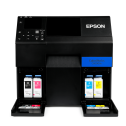
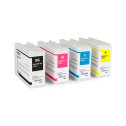
The Epson ColorWorks CW-C6000 uses four 80 mL SJIC35P UltraChrome DL pigment ink cartridges. The cyan (SJIC35P-C), magenta (SJIC35P-M), and yellow (SJIC35P-Y) cartridges are the same for every C6000. The black is Gloss Black (SJIC35P-BK). The CW-C6500 uses the same cartridges, and the printer only accepts genuine Epson cartridges.
The Epson ColorWorks CW-C6000 uses four 80 mL SJIC35P UltraChrome DL pigment ink cartridges. The cyan (SJIC35P-C), magenta (SJIC35P-M), and yellow (SJIC35P-Y) cartridges are the same for every C6000. The black is Matte Black (SJIC35P-MK). The CW-C6500 uses the same cartridges, and the printer only accepts genuine Epson cartridges.
The Epson ColorWorks CW-C6000 uses the SJMB6000/6500 maintenance box, the same one as the CW-C6500. It collects waste ink from printhead cleaning, and you’ll need to replace it when the printer says it’s full. The printer’s display shows how much room is left. One comes with the printer, but we suggest keeping a spare on hand so you aren’t stuck waiting when it fills up.
No. The Epson ColorWorks CW-C6000 has a permanent PrecisionCore TFP printhead designed to last the life of the printer, so it isn’t something you’ll replace like ink. To help keep print quality consistent over that time, the printer uses Nozzle Verification Technology to check for missing dots, automatically maintains the printhead, and compensates for any missing dots it finds. If the printhead has a hardware problem, it’s covered by Epson’s 1-year limited warranty, or longer if you buy an Epson extended service plan.
The paper-feed mechanism on the Epson ColorWorks CW-C6000 is rated for about 124 miles (200 km) of media. On the CW-C6000A, the auto-cutter is rated for up to 1.5 million cuts on paper liner.
The Epson ColorWorks CW-C6000 prints up to 5" per second. Speed depends on the quality setting you choose: the higher the quality, the slower it prints. In Max Speed mode, it prints up to 5" per second. In Normal mode, it prints about 2" per second, and in Max Quality mode, about 0.3" to 0.4" per second. Narrower labels can print slightly faster. Your actual speed also depends on your file size and how quickly data reaches the printer.
Faded or smeared black on Epson ColorWorks CW-C6000 Matte labels usually means you’re printing on semi-gloss or high-gloss media. Matte black ink is made for porous surfaces like plain and matte paper. On semi-gloss or high-gloss stock, it sits on top instead of soaking in, so it can look faded or smear easily. To fix it, switch to plain, matte, or matte synthetic stock. If you need glossy labels, the CW-C6000 Gloss is a better fit, since its gloss black ink works on both gloss and matte finishes.
Smudged Epson ColorWorks CW-C6000 Gloss labels on plain paper usually mean the media type setting doesn’t match your stock. Plain paper absorbs ink differently than gloss media, so the setting matters. If it’s wrong, ink can take longer to dry, so labels can smudge easily. To fix it, set the media type to plain paper and let labels dry completely before handling them. If you mostly print on plain or matte stock, the CW-C6000 Matte is a better fit, since its matte black ink is made for porous surfaces.
Streaks or white lines on Epson ColorWorks CW-C6000 labels usually mean the printhead nozzles are clogged. Print a nozzle check pattern by going to Menu > Maintenance > Print Head Nozzle Check on the printer, or by using Nozzle Check in the driver’s Printer Utilities. If any lines are missing, run a printhead cleaning and print the pattern again. It’s also worth checking that the media type setting matches the label stock you loaded.
Skipped labels, blank labels, or a media error on the Epson ColorWorks CW-C6000 usually mean the media detection setting doesn’t match your label stock. This often happens when you switch to a new roll. On the printer, set Media Detect to Gap, Black Mark, or Continuous to match your roll. Then open the driver’s Printer Setting Utility, go to Advanced Settings, and run Adjust Media Detection Sensor so the sensor learns the gap or mark. If you’re using black mark stock, the marks must be at least 0.72" x 0.16". Our labels have a 0.125" gap between them.
The Epson ColorWorks CW-C6000P won’t print the next label until you take the one it just printed. A sensor detects when a label is waiting and holds the next print until it’s removed. If you’ve taken the label and the printer still won’t print, check that the liner is threaded correctly through the peeler, since a sensor misread can stall printing. Avoid feeding labels backward through the peeler, which can damage them. If you need to print continuous batches without peeling, the CW-C6000A is a better fit.
Yes. Every Epson ColorWorks CW-C6000 (C6000A or C6000P, Gloss or Matte) bought online from Smith Corona comes with a one-time-use $500 coupon for free blank inkjet labels. We’ll email you the coupon after your purchase. It can only be used on blank inkjet labels, not tax, shipping, or other products. If you don’t receive it, email us at support@smithcorona.com.
No. Smith Corona ships every Epson ColorWorks printer for free, including the Epson ColorWorks CW-C6000. If you’re buying three or more printers, call us at 800-875-7000 for a volume quote. Payment terms are available for qualified accounts.
The Epson ColorWorks CW-C6000 comes with Epson’s 1-year limited warranty with depot repair, meaning you send the printer to Epson to be fixed. You can extend your coverage to as much as 5 years total with an Epson extended service plan.
Spare-in-the-Air sends you a replacement printer, while Return for Repair fixes the one you have. With an Epson Preferred Plus Spare-in-the-Air plan, Epson ships you a replacement Epson ColorWorks CW-C6000 by next business day. Requests need to be made by 1 p.m. Pacific, and shipping is paid both ways. With Return for Repair, you send your printer to an Epson depot to be fixed, with parts and labor included. Both plans are available in 1-year increments, up to 5 years of total coverage.
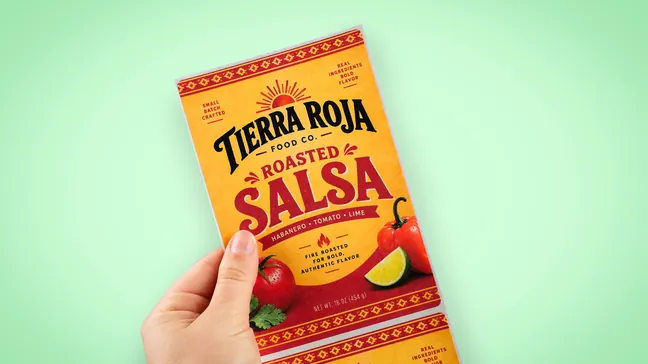
Evaluate your artwork in print before choosing your labels. Request a sample printed with an Epson ColorWorks printer to review the colors, detail, and label material firsthand.
Email support@smithcorona.com with your preferred label size, finish, and material. Attach your artwork as a PDF file.
We may not have your exact label size available for a sample print, but we’ll work with you to find a suitable alternative for evaluating your design and print quality.
Watch your inbox after submitting your request, as we may contact you to confirm details or ask for additional information.
Explore label materials for your application. Request samples directly from the product page for any stock inkjet label.
Questions? Email info@smithcorona.com to discuss available sample options.
Whether you have a question about your Epson ColorWorks printer, compatible inkjet labels, or an order, Smith Corona is here to help. Contact our team to discuss what you need and the next steps.
Email: support@smithcorona.com
Phone: 800-875-7000
Include your printer model, a brief description of your question or issue, and any error messages. For print quality concerns, attach a photo of the printed label to your email. If you’re contacting us about an order, please include your order number.

Smith Corona is a certified Epson partner, offering the best in ColorWorks label printing solutions. Whether you need vibrant, full-color labels or a reliable on-demand printing system, we provide expert support and factory-direct pricing. Explore our selection of Epson ColorWorks printers and labels, backed by our commitment to quality and customer service.


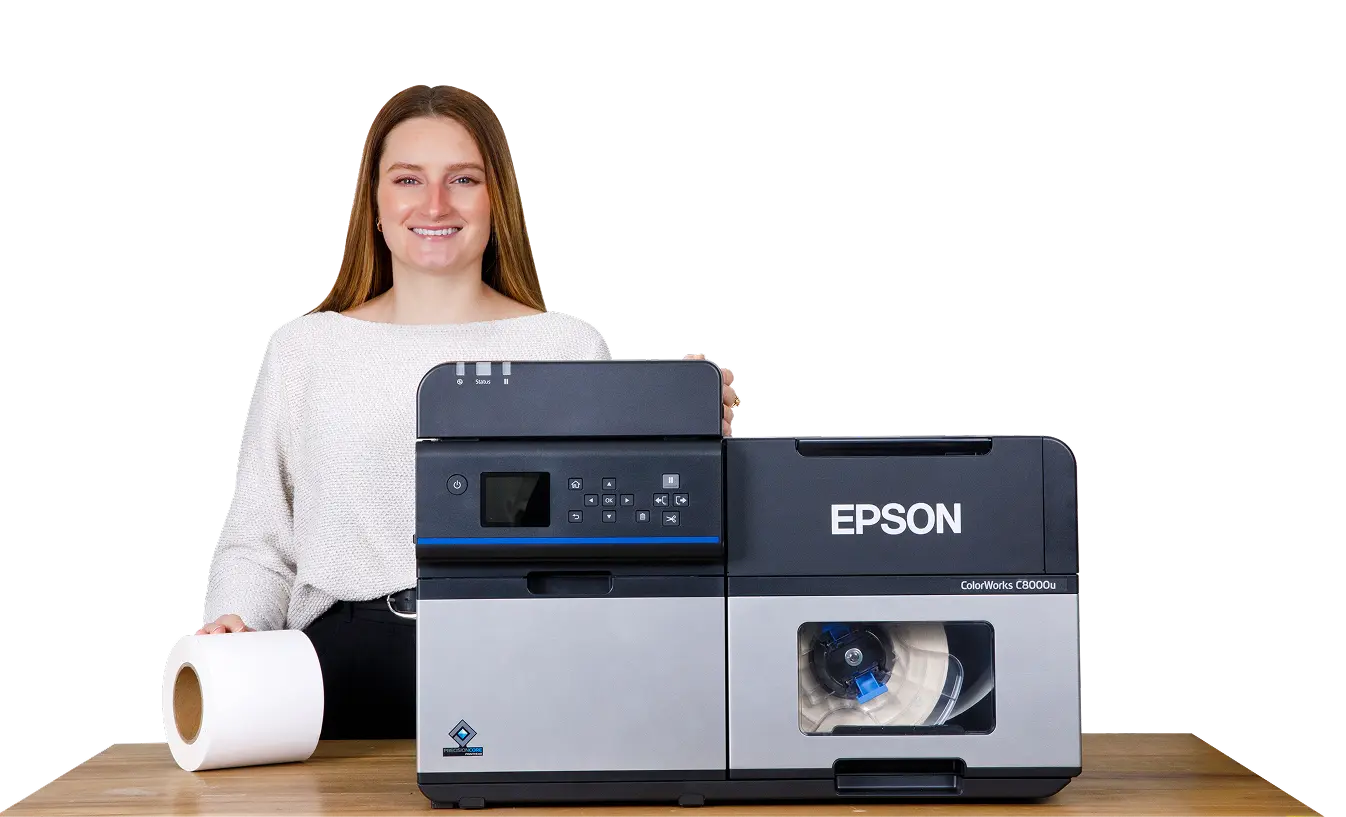
If you’re a younger sibling like me, you know it’s hard living in the shadow of your older sibling (If not, take my word for it). Especially when they hog the spotlight.
This is how I imagine it is for the Epson ColorWorks C6000A. Its older sibling, the C6500A, is nearly double in size.
But don’t let the C6000A fool you. A color upgrade from black and white thermal printing, the C6000A is “engineered for mission-critical applications” up to 4-inches wide.

Add in a built-in auto cutter for variable label lengths and this printer is certainly a contender.
If these factors sound appealing for your business, you’ll want to take a closer look at the C6000A. Besides, Epson doesn’t call these printers “Tough Guys” for nothing.
Let’s find out if the C6000A is the printer for you.
We can’t begin talking about the Epson C6000 series without first making a crucial choice: which key model feature do you want?
For this article, we’re focusing our efforts on the auto cutter.
The auto cutter is a built-in feature of the C6000A. It’s excellent for creating versatility during printing. Labels can be cut at variable lengths so users can customize a wide range of sizes.
Plus, the auto cutter can be programmed to cut labels at any point:
So what kind of labels are we talking about? The Epson C6000A utilizes labels on a 3” core roll. Depending on your application, paper or synthetic materials can be printed on, including polypropylene.
But here’s where the ColorWorks C6000 series separates itself from the C6500. Despite being a smaller printer in size, the C6000A supports label rolls with an 8” OD.
That’s right, the C6500A is bigger in size but can only support label rolls with a 6” OD.
Yeah, it’s not just a model feature you have to worry about. The Epson C6000A is available in 2 versions: gloss or matte.
Now don’t shrug off this decision. The ink set type you choose will affect how your inkjet labels print. And once you choose, you’re stuck with that type.
Both have their benefits for a wide range of applications, such as:
Let’s break down which one will work best for you. Gloss offers versatility. It can be printed on both gloss and matte media. However, it provides excellent image quality when used on gloss media for added shine.
| Media | Gloss Black Ink | Matte Black Ink |
|---|---|---|
| Matte Paper | Good Image | Richer Image- Darker Black |
| Matte Polypropylene | Good Image | Richer Image- Darker Black |
| Gloss Paper | Excellent Image | Not Recommended |
| Gloss Polypropylene | Excellent Image | Not Recommended |
If you’re looking for a darker, richer black ink, matte is the option you want. This is the main difference between the 2 ink types. Just a heads up – matte inks are not recommended for gloss label media.
Both versions use a pigment-based ink in standard CMYK colors. And when you use the winning combination (pigment-based ink with synthetic materials), your labels are BS 5609 compliant.
Take your pick!
Now that we’ve got the main features out of the way, let’s roll out the positives!
Like other inkjet printers in the Epson ColorWorks series, the C6000A has some great technological attributes.
Here’s take a look at what makes this model a stellar inkjet printer:
A downside to printers is the necessary printhead replacements throughout their lifespan. That’s where Epson has others beat.
Their PrecisionCoreⓇ technology not only eliminates this requirement, but enhances the capabilities of their ColorWorks printers.
To start, there’s no replacement printheads with PrecisionCoreⓇ. It’s designed to last the life of your Epson C6000A printer. This means no additional costs.
The printer’s Nozzle Verification Technology detects and remedies clogged nozzles automatically. This prevents print defects and issues that would require a new printhead.
PrecisionCoreⓇ has 2 core points:
This printhead has 2-3 times the resolution as Epson’s previous piezo printheads. At 40 million dots per second, its output rate delivers professional output to ensure impeccable quality for barcodes, texts, and images.
Despite this quality, PrecisionCoreⓇ doesn’t compromise on print speed. It fires up to 50,000 drops of ink per second. Per second! All while sustaining peak resolution.
This achievement definitely earns Epson a well-deserved round of applause.
Sometimes technology has its issues. And when this happens, you wish you could easily diagnose what’s wrong. Well, Epson thought of this!
The LED screen on the front of the printer displays all of your crucial printer information.
Need to know how many labels are left on a roll? The media counter has the number. Not sure when ink cartridges need to be reordered? Check out the color images of the ink levels. Have a print error but no clue how to fix it? Your C6000A will show you step by step instructions.
Now time wasted on troubleshooting can be better spent printing inkjet labels. All of this readily accessible information is truly a time saver.
Imagine having IT support readily available to remotely dial into your C6000A and check its status.
Well, you don’t have to imagine it because Epson has you covered!
Epson’s Remote Printer Management feature means support is on hand to help. This program can:
Have multiple C6000A printers? Remote Printer Management keeps your fleet running at peak performance. Talk about a game changer!
We love making the printing process that much better. Who doesn’t, right?
A more efficient way to print labels is exactly why you should look into accessories for your C6000A.
Here’s some options:

External media holders like unwinders and rewinders are ideal for users who want to make their printing process run smoothly.
Want to use a larger roll of labels for that big print job? While the C6000A can support rolls with an OD of 8”, an unwinder can support rolls with a 10” OD. This means replacing empty rolls less often.
Looking to use a label applicator or apply labels by hand? The rewinder easily rewinds labels for an easier application process. Plus you’re saving by printing labels in-house instead of purchasing pre-printed labels instead.
Definitely an option worth considering!
The C6000A is by no means a perfect printer. But that’s okay!
These minor obstacles do little to hinder users from this printer’s full potential.
Here are some areas where the C6000A could improve. And how you can work around them!
Yes, this is unfortunately a feature with all Epson ColorWorks printers.
Epson provides users with a printer driver for the initial setup process, which you can access on their website. These work with a variety of devices:
So when it comes to designing your labels, you’ll need to buy a separate program. This gives users the ability to choose the design software that benefits their labeling needs.
Need barcodes? BarTender is available. Looking for GHS and hazardous label designs? CODESOFT is an ideal choice. Want to explore different images? Adobe can help!
All of these options work well with Epson. We encourage you to take a look for yourself!
Unlike its older sibling (the C6500A), the C6000A has an average print width for labels:
While this does mean 8” wide labels for tasks like chemical drums aren’t an option, a 4.25” print width isn’t something to be mad about. Especially if your label needs fit within that size range.
Plus, almost every other Epson ColorWorks printer has this print width size. It’s very common!
Additionally, the auto cutter feature still allows a wide range of variable length inkjet label sizes. So really, your ability to print a variety of sizes is pretty vast.
This is a little frustrating for your first time use. But it’s the ONLY time you’ll deal with it.
During initial setup, Epson printers like the C6000A go through “an ink charging” process. This is just a way of getting ink into the printer for the first time.
However, the process quickly consumes ink. Meaning you’ll need to replace your ink cartridges sooner than later.
This also means your maintenance box fills up quickly. A maintenance box acts as a garbage can inside your printer. Excess ink waste ends up there during tasks (like ink charging!). And like garbage, once it’s full, you’ve gotta take it out.
So you’ll want to purchase ink cartridges and a maintenance box very quickly after purchasing your C6000A.
But don’t forget! This is the only time you’ll go through these items this fast. After this, you can order ink depending on your labeling requirements.
This is a similarity the C6000A shares with other ColorWorks printers. This model has a print speed of 5 inches per second.
Now this isn’t a snail’s pace by any means. Additionally, you can’t forget the high-quality resolution you’re getting – a full 1200 x 1200 dpi (the highest of any Epson!).
You can increase the speed to print faster. Just be aware that it will lower the print quality setting.
But really, this speed isn’t anything to fret over. You won’t find this level of precision anywhere else.
Now the moment of truth! Should the Epson C6000A become part of your business?
If you’re looking for an on-demand, color upgrade from black and white thermal printing, this is the printer for you. Especially if a 4-inch print width (or smaller) is part of your labeling needs.
And don’t forget the auto cutter gives you the ability to print variable label lengths for a wide range of sizes.
Is not coming with a label design software a bit of an inconvenience? Sure. But the high-quality resolution you’re getting outmatches any other color printer on the market.
Looking to purchase your very own Epson C6000A printer? Smith Corona has teamed up with Epson and now offers Colorworks printers, accessories, and inkjet labels! We’re a one stop shop for all of your printer needs!
Visit our website to view all of the Epson printer models we offer. Have questions? We’re here to help! Give us a call at 800-875-7000.
When manual application is at the top of your labeling needs, you need a printer that can deliver.
Because, seriously, taking time to remove labels off of the liner is tedious. Not to mention, it disrupts your workflow and lowers productivity.
But is it possible to combine this unique attribute with on-demand, high-quality color printing?

I’m so glad you asked! Let me introduce you to the C6000P, one of Epson’s first printers with peel-and-present capability.
A smaller version of the C6500P, this model is the ideal choice for print-and-apply applications up to 4-inches wide.
Whether it’s warehouse containers or wine bottles, this model will have labels ready to be applied the moment they print.
Let’s dive into why the C6000P might be the Epson printer for you.
Just like the C6500 series, the C6000 series comes with a critical choice to make: which key model feature do you want?
For this article, we’re going to focus on peel-and-present. This feature is not an attachment – the peeler comes built into the C6000P, ready to work.
And it cannot be removed. It’s a permanent feature for this printer model.
The peeler removes labels from the liner as they print. This makes them ready for immediate manual application. That’s right, no time wasted fussing around with the release liner here.
And you can apply labels at your own pace! A built-in sensor won’t print the next label until you remove the current one.
The C6000P utilizes inkjet labels on 3” core rolls in both paper and synthetic materials, including polypropylene.
But here’s where the ColorWorks C6000 series separates itself from the C6500. Despite being a smaller printer in size, the C6000P supports label rolls with an 8” OD.
That’s right, the much bigger C6500P can only support label rolls with a 6” OD.
You decided on the peeler model but there’s another decision you’ll have to make for your printer: gloss or matte ink?
Now don’t shrug off this decision. The ink set type you choose will affect how your inkjet labels print. And once you choose, you’re stuck with that version.
Both have their benefits for a wide range of applications, such as:
Let’s break down which ink will work best for you. Gloss offers versatility. It can be printed on both gloss and matte media. However, it provides excellent image quality when used on gloss media for added shine.
| Media | Gloss Black Ink | Matte Black Ink |
|---|---|---|
| Matte Paper | Good Image | Richer Image- Darker Black |
| Matte Polypropylene | Good Image | Richer Image- Darker Black |
| Gloss Paper | Excellent Image | Not Recommended |
| Gloss Polypropylene | Excellent Image | Not Recommended |
If you’re looking for a darker, richer black ink, matte is the option you want. This is the main difference between the 2 ink types. Just a heads up – matte inks are not recommended for gloss label media.
Both versions use a pigment-based ink in standard CMYK colors. And when you use the winning combination (pigment-based ink with synthetic materials), your labels are BS 5609 compliant.
Let’s take a look at what makes the C6000P great.
Like other Epson printers in the ColorWorks series, the technology that comes with this model makes it a printer worth its weight in gold.
Here’s a look at some of them:
While the need for printhead replacements is a drawback for many printers, you won’t find that problem with Epson.
Enter their PrecisionCoreⓇ technology. PrecisionCoreⓇ eliminates printhead replacements. That’s right, it’s manufactured to accompany your Epson C6000P printer for its entire lifespan, eliminating extra costs.
Powered by Nozzle Verification Technology, the printer automatically detects and remedies clogged nozzles. This prevents print defects and issues that would require a new printhead.
PrecisionCoreⓇ has 2 core attributes:
With 2-3 times the resolution of Epson’s previous piezo printheads, this technology boasts an output of 40 million dots per second. This ensures unmatched quality for barcodes, text, and images.
And don’t think this level of quality eliminates speed. PrecisionCoreⓇ dispenses ink at an astounding rate of 50,000 drops of ink per second. All while sustaining peak resolution for your inkjet labels.
This achievement definitely earns Epson a well-deserved round of applause.
Issues always happen with technology. During these moments, wouldn’t it be great to know exactly how to fix the problem?
That’s exactly what Epson thought of when they added their color LED control panel to the front of the printer.
The 6000P LED screen that displays all of your essential printer information, such as:
Now, time you would’ve spent troubleshooting is better spent focusing on printing labels!
Having IT support readily available to remotely dial into your printer? Surely this isn’t possible.
Well, Epson’s found a way to check in on the status of your C6000P!
Epson’s Remote Printer Management feature means support is on hand to help at any time. This program can:
Have multiple C6000P printers? Remote Printer Management keeps your fleet running at peak performance. Talk about a game changer!
Accessories are a printer’s best friend. Seriously, they’re a great way to help your printer work faster and more efficiently.
Looking for options for your C6000P? Here’s a look at some accessories that work for Epson:

External media holders like unwinders and rewinders work a little differently for printers with a peeler feature.
Yes, the unwinder supports using larger rolls of inkjet labels. For the C6000P model, the external medial holder supports up to a 10” OD roll. So if you have a large print job and don’t want to switch out labels as you go, this is a great option!
It’s the rewinder that’s used a little differently. Remember, the C6000P automatically peels labels from the liner. Therefore labels cannot be rewound like they would with other printers.
Instead, the rewinder helps with the release liner. As labels print, the waste liner gets longer and longer. This leaves your workstation a mess, and can even be a slip hazard if the liner falls to the floor.
For the C6000P, the rewinder sits behind both the printer and unwinder. Waste liner is then pulled underneath both, where it rewinds as labels continue to print. This makes for a much easier clean up!
To use these tools, you’ll need to adjust the media source setting to the setting for feeding labels from outside of the printer.
Definitely an option worth considering!
Sorry, no printer is perfect. There’s always room for improvement. But these factors don’t mean users are left up a creek with no paddle.
Here’s where the C6000P could be better. And the solutions that make these issues easier to deal with!
Yes, all Epson ColorWorks printers have this issue.
Epson only provides users with a printer driver for the initial setup process. These can be accessed on their website and work with a variety of devices, including:
So when it comes to designing your labels, you’ll need to buy a separate program. But this means you have the freedom to choose which design software meets the needs of your business.
Need barcodes? BarTender is available. Looking for GHS and hazardous label designs? CODESOFT is an ideal choice. Want to explore using different images? Adobe can help!
And all of these are an option to pair with Epson!
Remember how I said the C6000P was a smaller version of its older sibling, the C6500P? That’s because the C6000P has a smaller print width for labels:
But having a 4.25″ print width isn’t something you should be mad about unless you need to print large chemicals drum labels.
And if that is the case, the C6000P isn’t the right printer for you!
When you purchase your C6000P, it’ll come with a full ink cartridges. Which is great!
Only issue is you’ll go through that ink very quickly. But don’t worry, this is the ONLY time you’ll deal with that.
During initial setup, Epson printers like the C6000P go through “an ink charging” process. This is just a way of getting ink into the printer for the first time.
The downside to this process? It quickly consumes ink, meaning you’ll need to purchase new ink cartridges sooner rather than later.
Another inconvenience? Your maintenance box fills up quickly. A maintenance box is just like a garbage can inside your printer. Excess ink waste ends up there during tasks (like ink charging).
And like garbage, once it’s full, you’ve gotta take it out.
So you’ll want to purchase new ink cartridges and a maintenance box very quickly after purchasing your C6000P.
Since this is the only time you’ll quickly go through these items, you can strategically schedule future ink orders based on your labeling requirements.
Most Epson ColorWorks printers have a similar print speed. The C6000P falls into this category.
This model has a print speed of 5 inches per second. Not too bad by any means.
Plus, you can’t forget the high-quality resolution it provides – 1200 x 1200 dpi, which is the highest of any Epson!
Uses can increase the print speed if desired. Just be aware that it will lower the print quality.
Alright, now that you’ve gone through all of the details, it’s time to decide. Should you invest in the Epson C6000P?
If you’re looking for a color printer specifically with peel-and-present capabilities, this is the printer for you. Especially if a 4-inch print width (or smaller) is part of your labeling needs.
The high-quality resolution pairs spectacularly with the ability to print and apply labels on demand. Yes, not coming with a design software program is a bit of an inconvenience.
But in all, it’s a small bump in the road compared to the huge benefits the C6000P provides.
Looking to purchase your very own Epson C6000P printer? Smith Corona has teamed up with Epson and now offers Colorworks printers, accessories, and inkjet labels! We’re a one stop shop for all of your printer needs!
Visit our website to view all of the Epson printer models we offer. Have questions? We’re here to help! Give us a call at 800-875-7000.
From national brands to growing small businesses, companies across every industry trust Smith Corona for dependable labeling and printing supplies.












“After testing several suppliers, we chose Smith Corona because they delivered the best overall value. The pricing is noticeably better, the labels run clean, and our printers accepted them right away. No surprises or no downtime. Their quick shipping and friendly support staff have made every reorder a simple process.”

Better pricing, dependable supply, fast shipping, and real support. Everything you need to keep your labeling operation running smoothly.
Our customers consistently save compared to major marketplaces and distributors, without sacrificing quality or performance.
Orders ship fast so you can keep printing, labeling, and shipping without interruption.
Our labels and supplies are tested for clean performance and consistent printing, backed by our satisfaction guarantee.
Real people, real help. Our team is here to answer questions, recommend the right products, and make reordering simple.
 Thank You!
Your Request Has Been Successfully Submitted
Thank You!
Your Request Has Been Successfully Submitted
One of our experts will be in touch shortly! If you have any immediate questions, you can always call us Monday through Friday (9:00 AM EST to 5:00PM) at 800-875-7000